
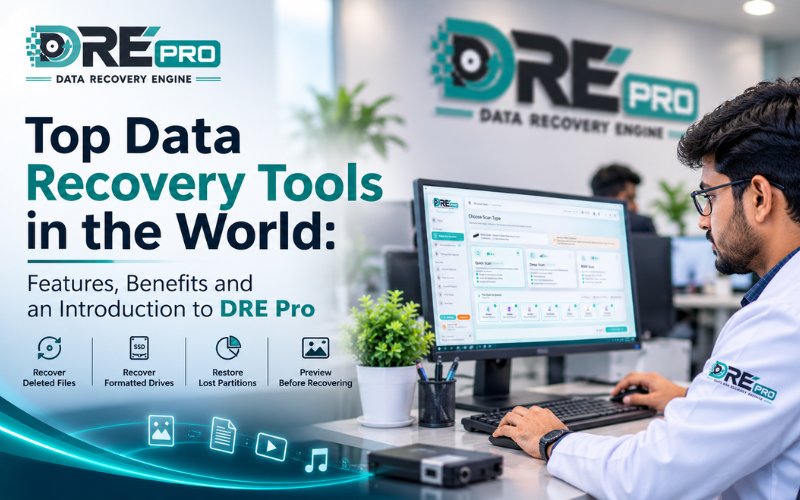
Losing important files from a hard drive, SSD, USB drive or memory card can be stressful. Whether the missing data includes personal photos, videos, office documents or business files, finding the right data recovery software can make the recovery process easier to understand.

Today, several data recovery tools offer features such as deleted file recovery, formatted drive recovery, deep scanning, file previews and lost partition recovery. However, not every tool offers the same features, supported file systems or pricing model.
Choosing the best data recovery tools depends on the type of storage device, the reason for data loss, the condition of the drive and the features you need.
Popular tools include Stellar Data Recovery, R-Studio, Recuva, EaseUS Data Recovery Wizard and Disk Drill. Another option is DRE Pro by DataRecoverix, developed by Data Engineers. It offers scanning and file-preview features before users purchase a licence to save recovered files.
In this guide, we compare the key features and benefits of these data recovery tools and explain what to consider before choosing one.
What Is Data Recovery Software?
Data recovery software is designed to help locate and recover files that have become inaccessible, deleted or lost because of certain logical data-loss situations.
Depending on the software and the condition of the storage device, it may help recover files after:
- Accidental file deletion
- Drive formatting
- File system corruption
- Lost or inaccessible partitions
- Certain logical errors affecting storage devices
- Data loss from supported USB drives and memory cards
Different tools use different scanning methods and recovery techniques. A quick scan may locate recently deleted files, while a deep scan may examine storage more thoroughly to identify additional recoverable data.
However, software cannot guarantee recovery in every situation. Overwritten data, SSD TRIM operations, severe physical damage and hardware failures can limit or prevent recovery.
If a drive is making unusual mechanical noises, repeatedly disconnecting or showing signs of physical damage, stop using it and consider a professional assessment rather than repeatedly scanning it.
Top Data Recovery Tools in the World
The following tools offer different features and are designed for different types of users. The right choice depends on your recovery requirements, technical experience, budget and storage device.
1. DRE Pro by DataRecoverix
DRE Pro is data recovery software developed by Data Engineers and offered through DataRecoverix. It is designed to help Windows users scan storage devices, examine detected files and assess recovery results before purchasing a licence.
One of its key benefits is that users can try the free version to see what the software finds before deciding whether to pay to save recovered files.
Key Features of DRE Pro
- Quick, Deep and RAW Scan: Different scanning options for finding potentially recoverable files.
- Support for Multiple File Systems: Supports NTFS, FAT, exFAT, ext4 and HFS+.
- File Listing and Organisation: Review detected files by folder or file type.
- File Quality Indicators: Detected files can be marked as Excellent or Good to help users assess the results.
- File Preview: Preview supported photos and documents before purchasing a licence.
- Photo and Video Repair During Scanning: Includes features for repairing supported damaged photos and reassembling certain scattered video files.
- Drive Health Report: View the drive’s reported health information and health percentage.
- Pause and Resume: Pause a deep scan and continue later.
- Save to Another Drive: Save recovered files to a separate storage device.
- Email Support: Get assistance from the team behind the software.
Benefits of DRE Pro
DRE Pro gives users an opportunity to assess recovery results before making a purchase. Instead of paying immediately, users can begin with a free scan, review detected files and preview supported content.
This can be useful when you want to check whether the software identifies the files you are looking for before buying a licence.
DRE Pro is designed for recovery workflows involving supported HDDs, SSDs, USB drives, memory cards and compatible file systems. Actual results depend on the storage device, the type of data loss and the condition of the media.
Try the Free Version Before Buying a Licence
DRE Pro follows a simple approach:
See Everything Free. Pay To Bring It Home.
The free DRE Pro download allows users to scan supported storage devices, view detected files, examine file quality indicators and preview supported photos and documents. A licence is required to save recovered files.
This means you can evaluate the scan results before deciding whether the licensed version meets your needs.
DRE Pro Free vs Licensed Version
Feature | Free Version | Licensed Version |
Quick, Deep and RAW Scan | Available | Available |
NTFS, FAT, exFAT, ext4 and HFS+ Support | Available | Available |
View Detected Files | Available | Available |
Excellent or Good File Indicators | Available | Available |
Preview Supported Photos and Documents | Available | Available |
Photo and Video Repair During Scanning | Available | Available |
Drive Health Report | Available | Available |
Save Recovered Files | Licence required | Available |
Deep Scan with Pause and Resume | Available | Available |
Email Support | Available | Available |
Licence Required to Scan and Preview | No | Licence required for saving recovered files |
DRE Pro Pricing
DRE Pro offers a free version for scanning and reviewing recovery results. The licensed version is listed at ₹999 per computer per year, with monthly or yearly licensing options available.
The licence applies to one computer. Check the current licence terms before purchasing.
Recommendation: Try the DRE Pro free version before buying a licence. Scan the affected drive, review the detected files and preview supported content. If the results meet your needs, you can then review the licence options to decide whether to purchase a licence to save the recovered files.

2. Stellar Data Recovery
Stellar Data Recovery is a well-known option for users looking for data recovery software for Windows and other supported platforms.
The software offers recovery features for different data-loss situations, depending on the edition and platform.
Key Features
- Recovery of deleted files
- Support for selected storage devices
- Scanning for lost data
- Recovery options for formatted or inaccessible volumes, depending on the edition
- File preview and other recovery features in supported versions
Benefits
Stellar may be suitable for users who want a recovery application with a range of features and editions for different requirements.
Before purchasing, check which features are included in the edition you plan to use, along with its supported operating systems, storage devices and recovery limits.
3. R-Studio
R-Studio is a data recovery tool known for its advanced recovery capabilities and technical options. It is often considered by experienced users, IT professionals and technicians who need more control over recovery operations.
Key Features
- Advanced scanning and recovery options
- Support for multiple file systems
- Recovery capabilities for selected damaged or inaccessible partitions
- Tools for analysing storage devices
- Additional features aimed at technical recovery workflows
Benefits
R-Studio can be appropriate for users with technical knowledge who need more detailed control over the recovery process.
However, its range of options may be challenging for beginners. Users should understand the software’s workflow and carefully check the selected drive before starting recovery operations.
4. Recuva
Recuva is a data recovery application commonly associated with recovering deleted files from supported storage devices.
It may be useful for straightforward recovery situations where files have been accidentally deleted and the storage device remains accessible.
Key Features
- Deleted file recovery
- Scanning of supported storage devices
- Recovery options for selected file types
- A straightforward interface for common recovery tasks
Benefits
Recuva may be worth considering when you need a simple tool for basic deleted-file recovery.
However, results depend on whether the data remains recoverable. If files have been overwritten or the storage device has a physical problem, software-based recovery may not be successful.
5. EaseUS Data Recovery Wizard
EaseUS Data Recovery Wizard is a data recovery application designed to help users recover files from supported storage devices and data-loss situations.
It offers a guided recovery workflow intended to make scanning and reviewing results easier for a wide range of users.
Key Features
- Deleted file recovery
- Scanning for lost files
- Recovery options for selected formatted drives
- Support for various storage devices
- File preview and other features in supported versions
Benefits
EaseUS may be suitable for users who prefer a guided interface and want to explore recovery options without working through highly technical settings.
Before choosing an edition, review its current recovery limits, supported devices, licensing terms and included features.
6. Disk Drill
Disk Drill is a data recovery application that offers scanning and recovery features for supported storage devices. Its available functionality depends on the operating system and edition.
Key Features
- Scanning for deleted or lost files
- Recovery options for supported storage devices
- File preview in supported workflows
- Additional storage-related tools in certain versions
Benefits
Disk Drill may be useful for users who want a guided recovery process and a range of features in one application.
As with other recovery tools, check platform compatibility, licensing terms and recovery limits before deciding whether it is suitable for your situation.
Comparison of Popular Data Recovery Tools
Each data recovery tool has different strengths. The following table provides a general overview rather than a guarantee of recovery performance.
Software | Main Strength | Best Suited For |
DRE Pro | Free scanning and file previews before purchasing a licence | Users who want to evaluate results before paying |
Stellar Data Recovery | A range of recovery features across supported editions | Home and professional users |
R-Studio | Advanced recovery controls | Experienced users and technicians |
Recuva | Straightforward deleted-file recovery | Basic recovery situations |
EaseUS Data Recovery Wizard | Guided recovery workflow | Users who prefer a user-friendly interface |
Disk Drill | Scanning and recovery features for supported platforms | Users seeking a guided recovery application |
No single tool is the best choice for every data-loss situation. The most appropriate option depends on the type of data loss, the condition of the drive, supported file systems, usability and cost.
How to Choose the Best Data Recovery Software

Before choosing data recovery software, consider the following factors.
1. Check Storage Device Compatibility
Confirm that the software supports your device, whether it is an HDD, SSD, USB drive or memory card. Also check the supported operating system and file system.
2. Look for Different Scan Options
Quick scans may help locate certain recently deleted files, while deep or RAW scans may identify additional files. More extensive scanning does not guarantee that every file can be recovered.
3. Preview Files Before Paying
A file listing does not always mean that the file can be recovered in usable condition. Preview functionality can help you assess whether supported photos and documents appear to contain the information you need.
This is one reason to consider DRE Pro’s free version before buying a licence: you can examine the scan results before deciding to pay to save recovered files.
4. Understand the Licence and Recovery Limits
Some applications limit the amount of data that can be recovered without payment. Others allow scanning and previewing but require a licence to save recovered files.
Read the current terms carefully so you know what is included before making a purchase.
5. Avoid Saving Files to the Affected Drive
Whenever possible, save recovered files to a different physical drive or another safe storage destination. Saving files to the same affected drive can overwrite data that may still be recoverable.
6. Consider the Condition of the Drive
If the drive is physically damaged, repeatedly disconnects or makes unusual mechanical sounds, stop using it. A software scan may not be appropriate for a failing device and continued use can worsen the situation.
Why Should You Try DRE Pro Before Buying a Licence?
Choosing data recovery software can be difficult when you do not know whether it will identify the files you need.
DRE Pro’s free version provides a way to evaluate the scan results before committing to a licence. You can scan a supported drive, review detected files, check their quality indicators and preview supported photos and documents.
This approach can help you make a more informed purchase decision.
The main points to remember are:
- You can begin scanning without buying a licence.
- You can review detected files and preview supported content.
- The licensed version is required to save recovered files.
- The listed annual licence price is ₹999 per computer, with monthly or yearly licensing options available.
- Recovery results depend on the condition of the drive and whether the missing data remains recoverable.
Try the free version first. Review the results, then buy a licence only if DRE Pro meets your recovery needs.
Download DRE Pro Free or review the licence options.
Important Tips Before Recovering Lost Data
Following a few precautions can help reduce the risk of further data loss.
- Stop using the affected storage device as soon as you notice important files are missing.
- Avoid installing recovery software on the same drive you want to recover.
- Do not save recovered files to the affected drive.
- Avoid repeated formatting or partition changes.
- Do not assume that a file is recoverable just because it appears in a scan result.
- If you suspect physical damage, seek a professional assessment before continuing.
These precautions are important because recovery software cannot reverse every type of data loss. In particular, overwritten files, SSD TRIM operations and physical drive failures can significantly reduce recovery possibilities.
Conclusion
Choosing the right data recovery software starts with understanding your storage device, the type of data loss and the features you need. Tools such as Stellar Data Recovery, R-Studio, Recuva, EaseUS Data Recovery Wizard and Disk Drill provide different approaches to finding and recovering lost files.
DRE Pro, developed by Data Engineers, is another option for Windows users who want to examine recovery results before paying. Its Quick, Deep and RAW Scan options, supported file systems, file quality indicators, previews and pause-and-resume functionality provide several features to explore.
One of its key advantages is the option to try the free version before buying a licence. You can scan a supported drive, review detected files and preview supported content. A licence is required to save recovered files.
If you are comparing the best data recovery software for your needs, start by evaluating the features, compatibility and recovery results rather than relying on claims alone.
See Everything Free. Pay To Bring It Home.
Download DRE Pro Free, check the results and make an informed decision before purchasing a licence.
Frequently Asked Questions
1. What is the best data recovery software?
The best data recovery software depends on your storage device, the type of data loss, your technical experience and your budget. DRE Pro, Stellar, R-Studio, Recuva, EaseUS Data Recovery Wizard and Disk Drill offer different features for different recovery requirements.
2. Can I use DRE Pro for free?
Yes. DRE Pro offers a free version that lets users scan supported storage devices, view detected files and preview supported photos and documents. A licence is required to save recovered files. You can download the free version to evaluate the results.
3. Should I try DRE Pro before buying a licence?
Yes. It is sensible to try the free version first. Scan the affected drive, review the detected files and preview supported content. Then decide whether the results meet your needs before purchasing a licence.
4. How much does DRE Pro cost?
The listed annual licence price is ₹999 per computer per year, with monthly or yearly licensing options available. Check the DRE Pro licence options and current licensing terms before purchasing.
5. Can data recovery software recover formatted drives?
Recovery may be possible after formatting, depending on the file system, the type of formatting, subsequent drive activity and whether the data has been overwritten. Recovery is not guaranteed.
6. Can data recovery software recover files from an SSD?
Some deleted or lost files may be recoverable from an SSD. However, the outcome depends on factors such as TRIM, overwriting, the SSD’s condition and the type of data loss.
7. Can I recover files from a USB drive or memory card?
Many data recovery tools support USB drives and memory cards. Success depends on the device’s condition, file system and whether the missing data remains available for recovery.
8. Does a deep scan guarantee complete recovery?
No. A deep scan can help locate additional files, but it cannot guarantee complete recovery. Files may be overwritten, damaged or unavailable because of hardware or file-system problems.
9. Is it safe to save recovered files to the same drive?
It is generally safer to save recovered files to a different physical drive. Writing new data to the affected drive may overwrite information that you are trying to recover.
10. Who developed DRE Pro?
DRE Pro is developed by Data Engineers and offered through DataRecoverix. The software provides scanning and file-preview features that let users evaluate recovery results before purchasing a licence to save recovered files. Learn more on the DRE Pro website.


